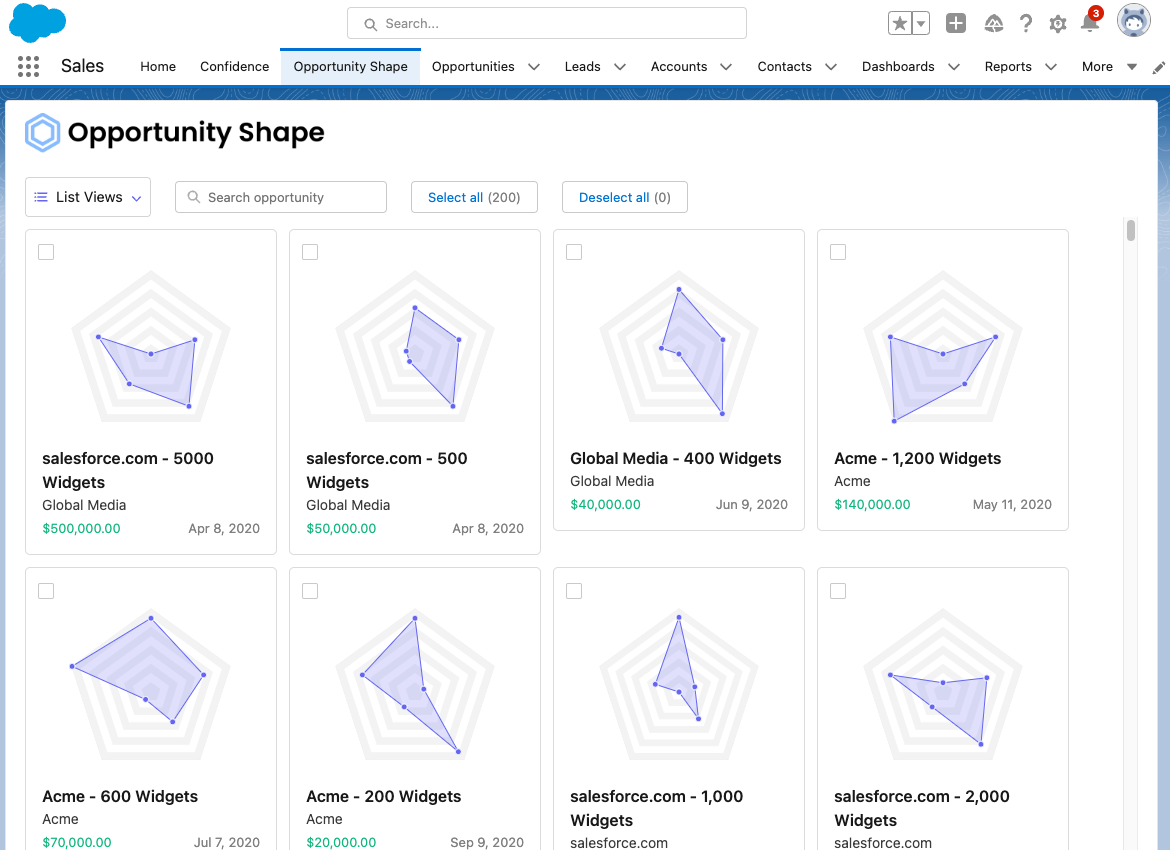
How do you configure Opportunity Shape dimensions and values?
Opportunity Shape comes pre-configured with five dimensions that allows you to get started right away. Feel free to customize these values or add new ones by following the steps below:
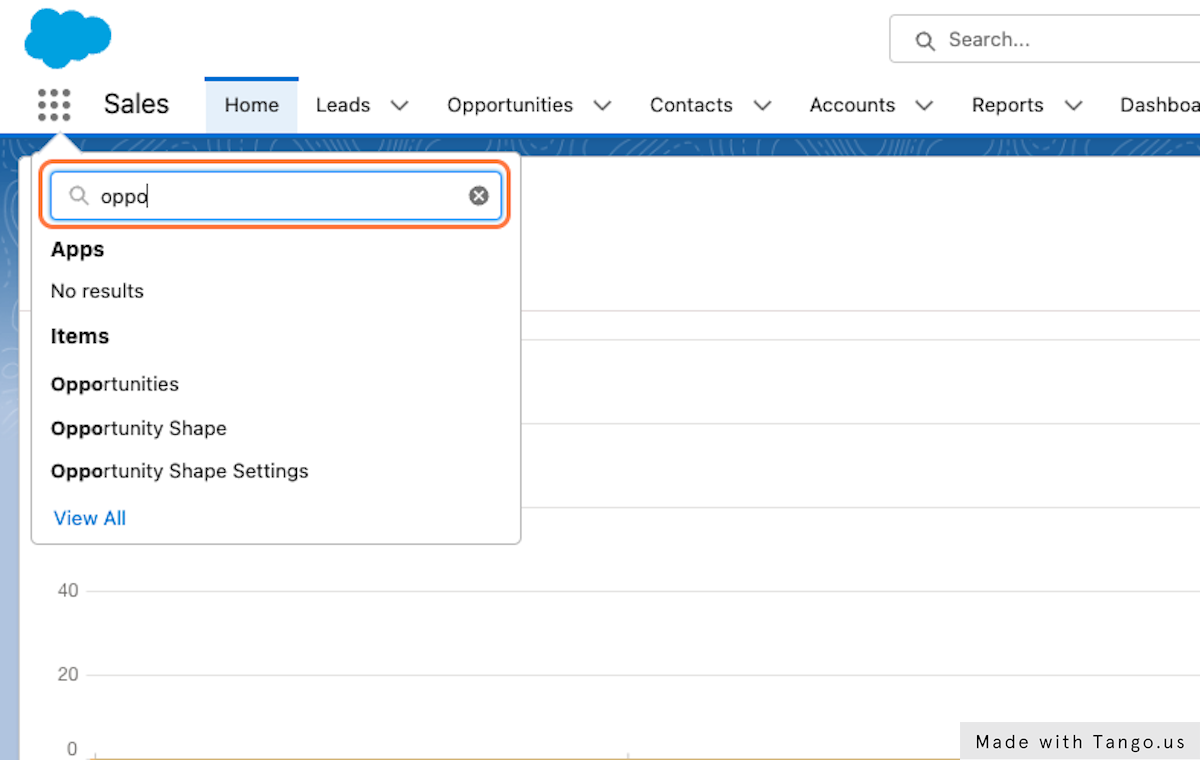
1. Click Salesforce App Launcher and then type "Opportunity Shape Settings"
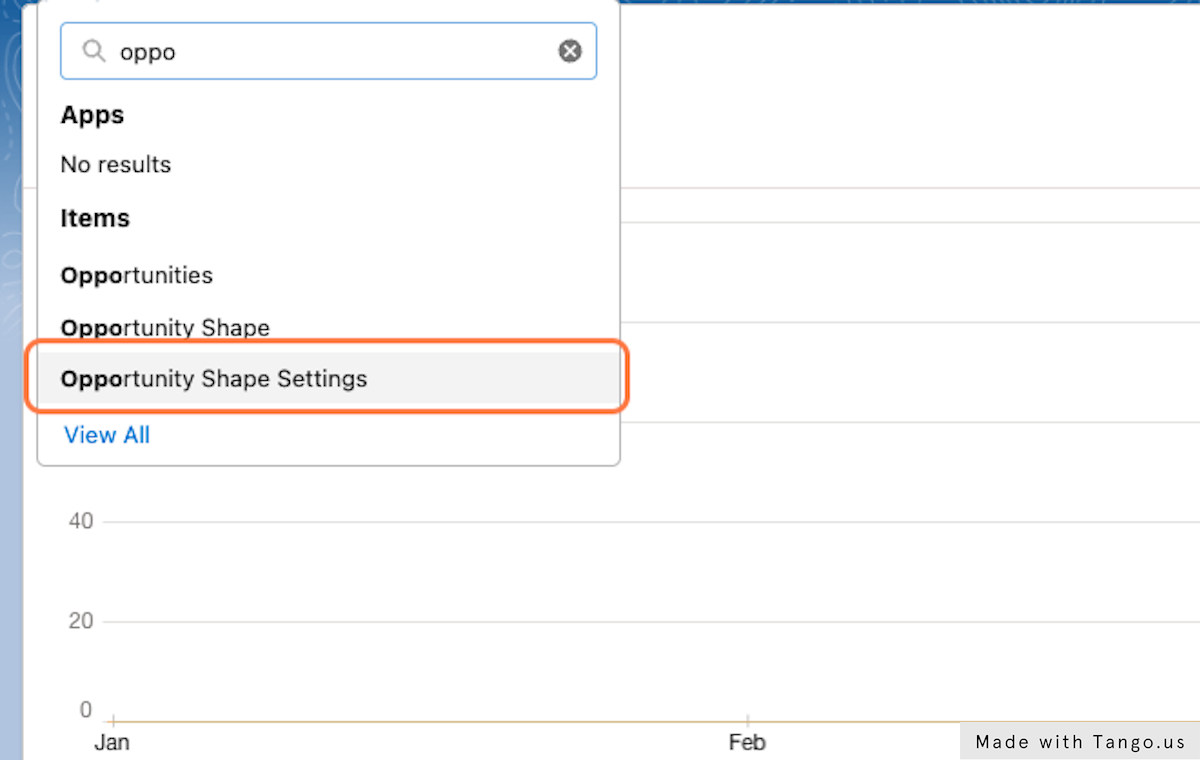
2. Click on Opportunity Shape Settings
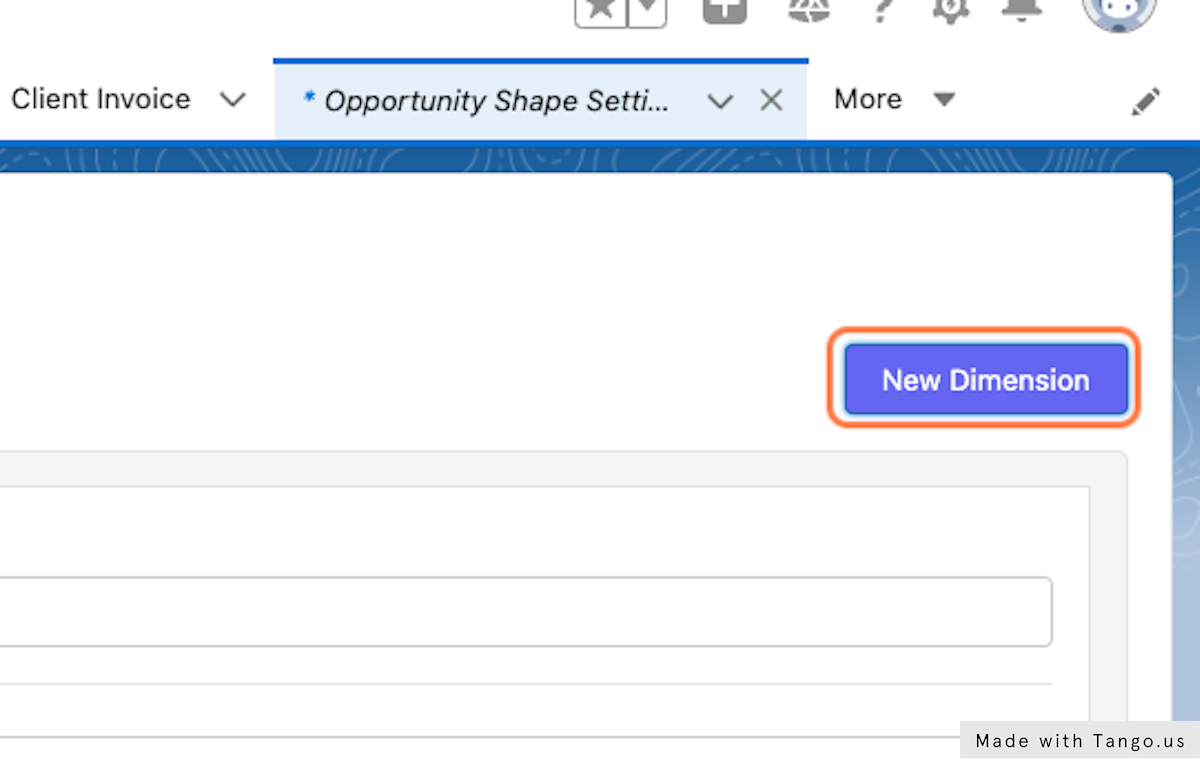
3. Click on New Dimension
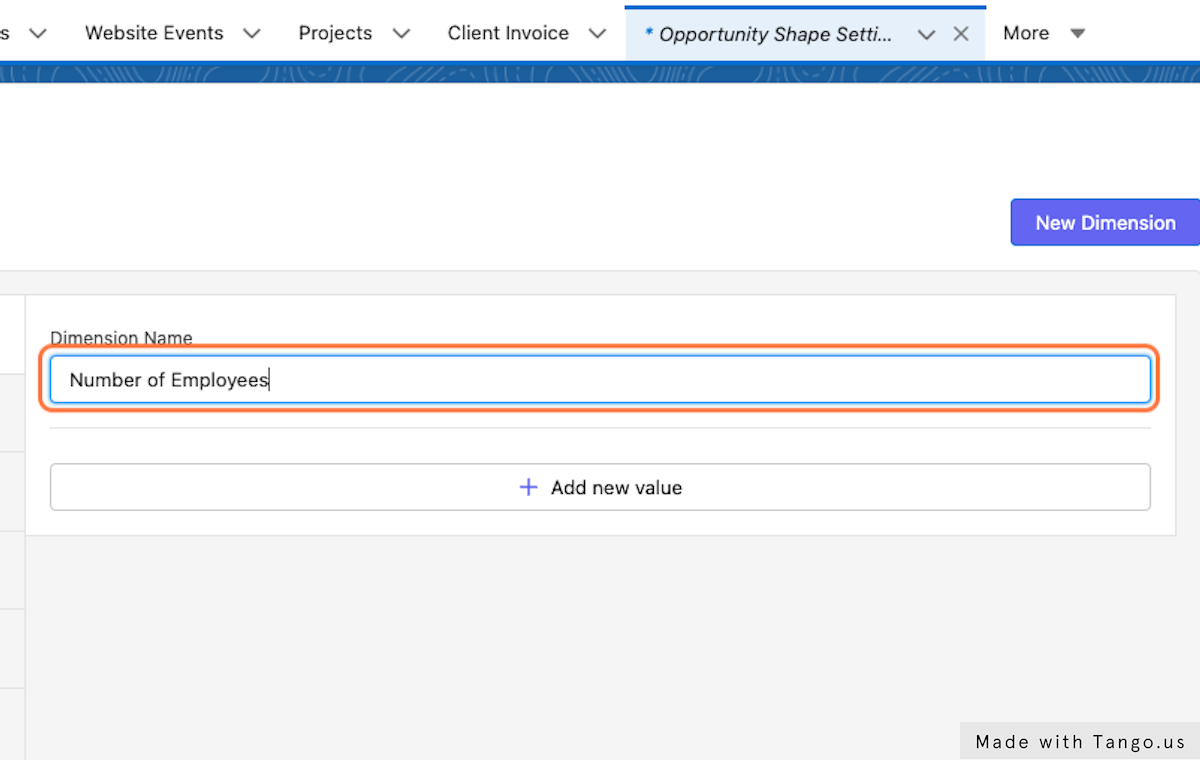
4. Add in your Dimension Name (such as Number of Employees)
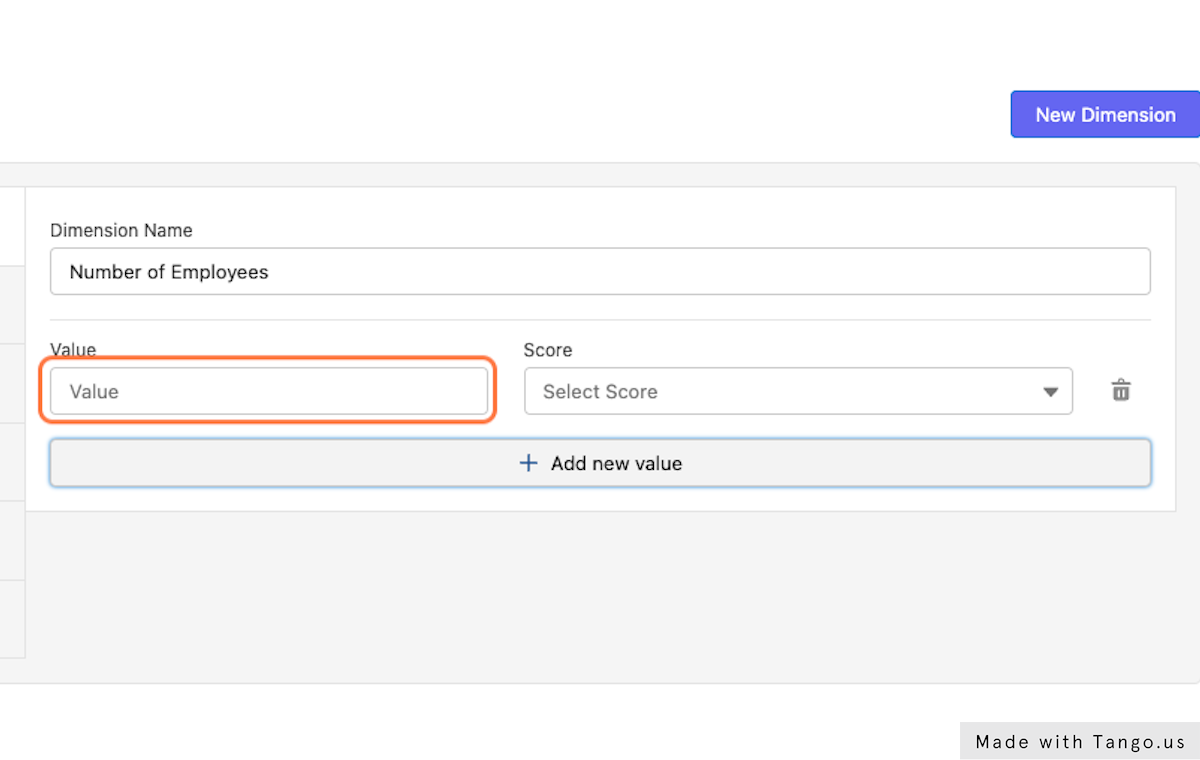
5. Click on Value and add in your dimension value (such as 100 employees)
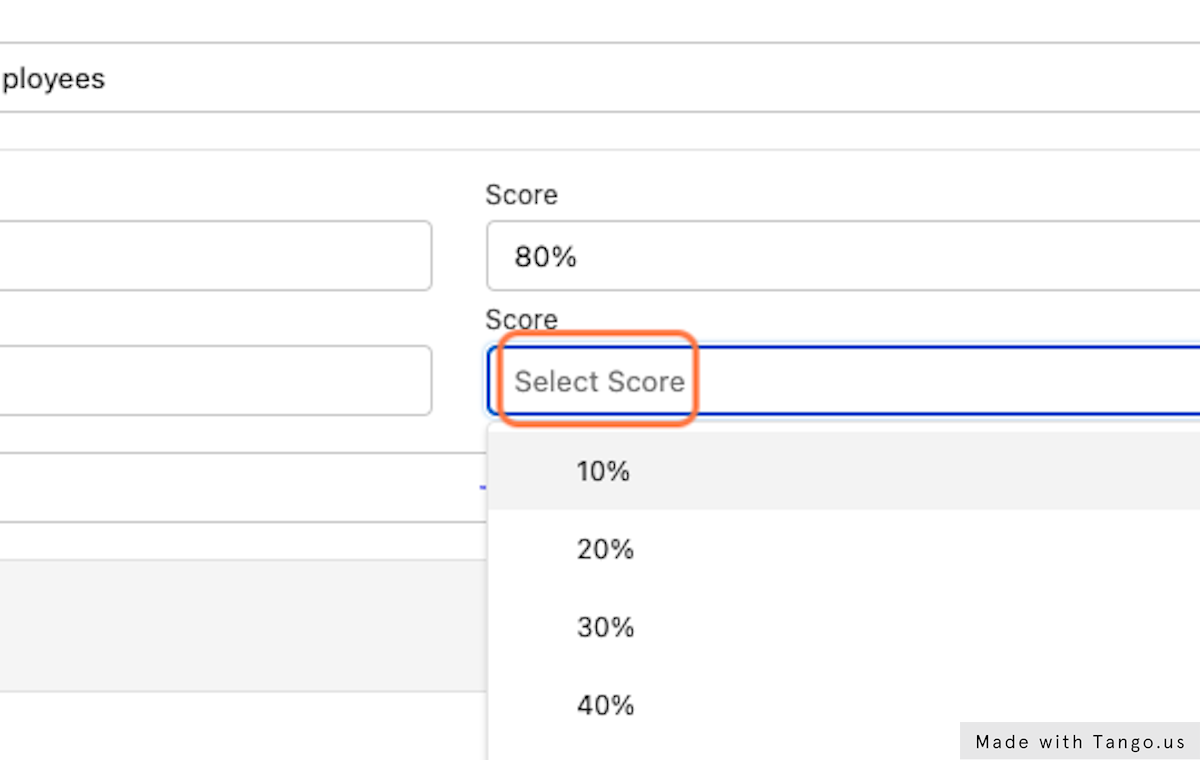
6. Click on Select Score and choose your weighted score
(Higher Percentage = Better Fit, Lower Percentage = Poor Fit…i.e. 90% score is Excellent, 20% score is Poor)
7. If you would like to remove any value, click on the trash can icon and then click “Yes” on the prompt that opens
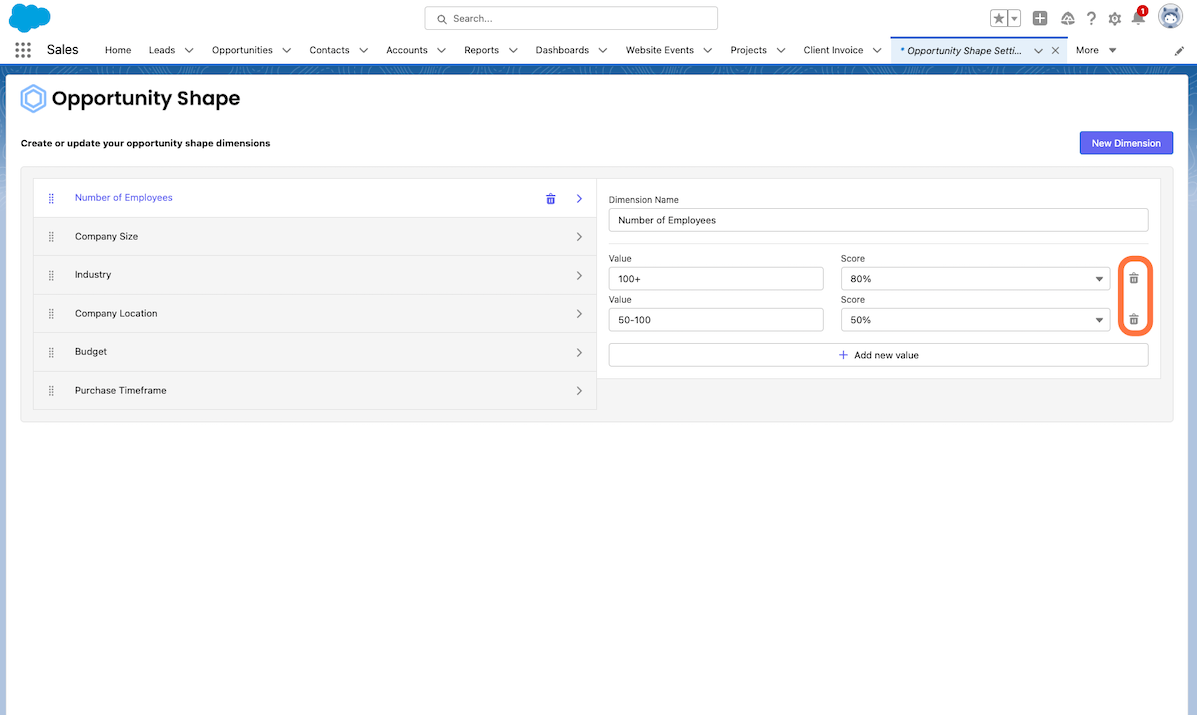
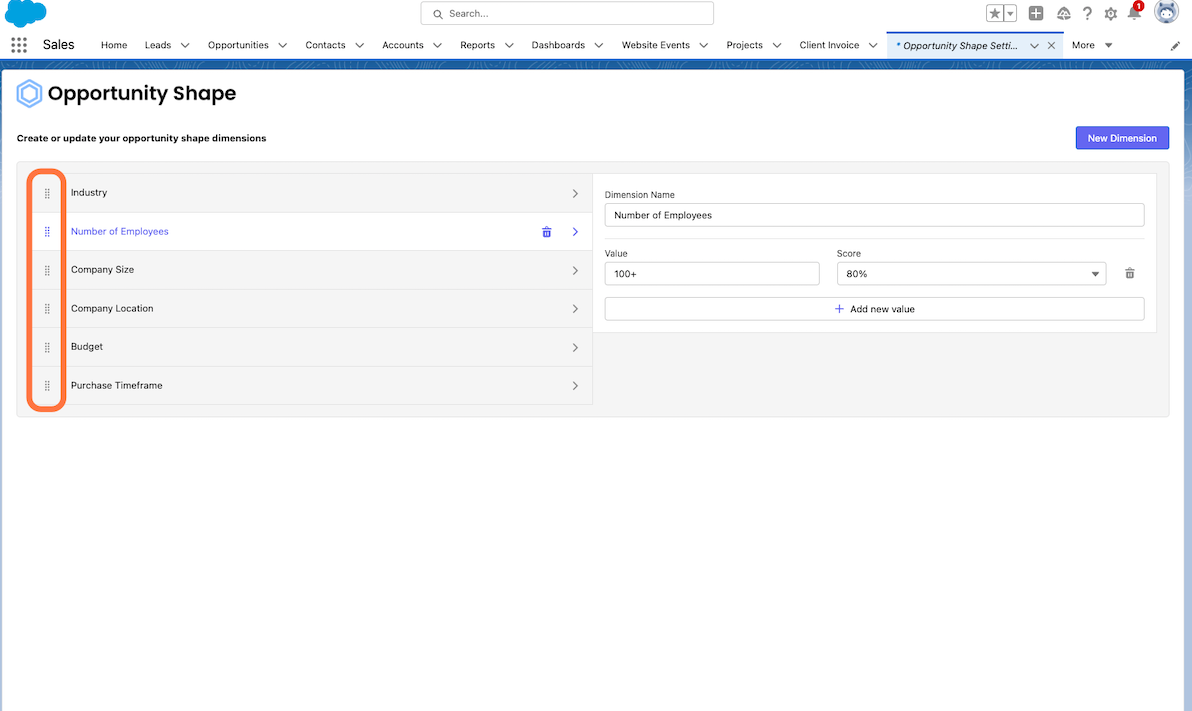
8. If you need to rearrange your dimensions, use the grid icon to the left of the dimensions to reorder as necessary
9. Repeat as many times as necessary to create your perfect opportunity shape!